When to Stop and Call a Data Recovery Professional
By GigaGone Editorial Team Review by GigaGone Editorial Team Most recently reviewed Published Topic: Data Loss & Recovery
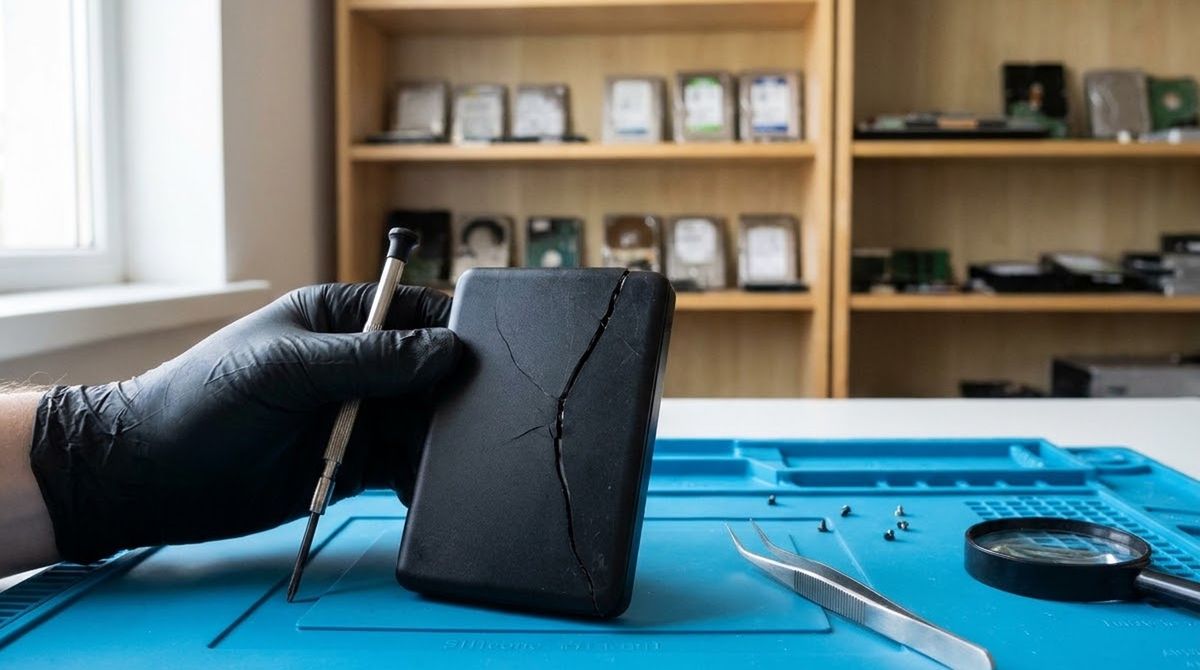
Stop DIY recovery and call a professional when a drive makes clicking or grinding noises, was dropped, flooded or burned, disappears from the computer, or holds files you cannot replace. Power it off at once, because every extra minute of use on a failing drive can destroy more data. Software scans are for healthy drives with accidentally deleted files only.
Part of the guide: Data Loss and Recovery: Prevention, First Steps and When to Stop
General information, not professional IT, security or legal advice; for a failing drive, a ransomware incident or a compromised account, contact the vendor’s support, your IT provider or a qualified professional. Reviewed by the editorial desk against the cited sources.
This page explains when to stop trying things yourself and hand a device to a professional. It sits within our data loss and recovery guide. GigaGone does not provide recovery services and does not endorse any specific paid provider; we describe how to choose one.
The short rule: stop, power off, do not experiment
If a drive is failing, each new attempt to read it is a gamble. Powering it off and leaving it alone is the one action that cannot make things worse. Decide afterwards whether the files justify a professional’s fee.
Signs to stop DIY immediately
- Clicking, grinding, scraping, beeping or repeated spin-up and spin-down from a hard drive.
- The drive appears and disappears, or is not detected at all.
- The computer freezes or crashes whenever the drive is connected or accessed.
- Visible damage: dropped, crushed, bent connector, burn marks.
- Liquid exposure: water, coffee, flood or humidity.
- A phone or laptop that will not power on and holds irreplaceable photos with no backup.
- Repeated error messages about bad sectors or “drive needs to be formatted”.
- Files you cannot replace and cannot afford to lose.
See also our guide to drive failure warning signs.
What to do in the first hour
- Power the device off. Unplug a USB or external drive. Do not keep restarting to “see if it works”.
- Do not run disk repair, defragmentation or “fix” utilities, and do not format or reinstall the system.
- Do not open a hard drive’s casing. Internal dust can ruin the platters.
- If it got wet, do not charge or power it on and do not try to dry it with heat.
- Write down what happened (drop, spill, noise, error message). A provider will ask.
- Check whether a copy already exists: Time Machine, Windows backup, iCloud, Google or OneDrive. A restore from a backup beats any recovery job.
- If you want to copy what still works from a healthy drive, back up first onto a separate disk; see our backup guide.
DIY software vs a professional
| Situation | Reasonable first step |
|---|---|
| File deleted by mistake, drive healthy | Recycle Bin, Trash, backup, then vendor tools (see recover deleted files safely) |
| Drive formatted by accident, healthy | Stop using it; consider vendor tools or a professional if important |
| Clicking, grinding, not detected | Power off; professional |
| Dropped, flooded or burned | Power off; professional or manufacturer |
| Ransomware or compromised account | Vendor support or IT professional |
Microsoft’s recovery tool itself states that source and destination must be different drives, and advises minimizing computer use after deletion. Those rules assume a working drive. They do not make a failing drive safe to scan.
How to choose a service (without us endorsing one)
We do not name or rank providers, because we cannot verify them, and prices and terms change. Use these questions instead:
- Do they evaluate before charging, and is the quote written and itemised?
- What is the policy if nothing is recovered?
- Do they explain how they handle physical damage (clean environment, donor parts) without overpromising?
- How do they protect your privacy? Ask about confidentiality, how data is returned and when copies are deleted.
- Will they work on the device type you have (HDD, SSD, phone, RAID or NAS)?
- Can you read independent customer reviews and a clear business address and contact?
- Are you being pressured? Treat guaranteed results, “pay now” urgency and refusal to put terms in writing as red flags.
If the device belongs to an employer or contains sensitive data, check with your IT provider before sending it anywhere. For manufacturer-supported devices, the vendor’s support is a sensible first call and may explain warranty options.
What to expect
- Evaluation: the provider examines the device and tells you whether recovery looks feasible.
- Quote: cost depends on damage type, device type, capacity, urgency and provider policy. We give no price figures.
- Recovery: they copy files to a new device. You supply a destination drive big enough, so check how many GB you need.
- Verification: you check the returned files before the provider is done.
- Afterwards: set up a backup so you never need to do this again. The 3-2-1 backup rule is the simplest plan.
Prevent the next emergency
Recovery is expensive, uncertain and stressful. A second copy on another drive plus a cloud copy costs far less. Apple recommends using a dedicated external drive for Time Machine with at least twice your Mac’s storage; for Windows and phones, follow the matching guides linked above.
Special cases
Phones and tablets
Modern phones encrypt their storage and tie it to the device, so a dead phone is usually a manufacturer or repair-shop matter, not a software one. Contact the maker’s support first, and tell them you need the data, not just a repair, because some repairs and resets erase it. Check whether iCloud, Google or another account already holds your photos and files.
External drives and NAS devices
A drive that clicks inside an enclosure is still a failing drive. Do not keep reconnecting it. For a multi-drive NAS or RAID, do not rebuild, re-initialise or swap disks without guidance from the vendor or a professional, because a wrong step can overwrite the array’s data.
Ransomware or a compromised account
If files are encrypted or an account was taken over, disconnect from the network and contact the vendor’s support or your IT provider. A data recovery lab is not the right first call for an account problem, and our ransomware and backups page explains why clean offline copies matter.
Before you spend money
Ask yourself what the files are worth, whether a copy exists anywhere (an old phone, an email attachment, a cloud album, another family member’s device) and whether the vendor offers support under warranty. Many people find the files they needed on a device they had forgotten.
Questions readers ask
How do I know if my drive has physical damage?
Warning signs include clicking, grinding or repeated beeping, the drive not appearing in the system, a computer that freezes when it is connected, or visible damage from a drop, water or heat. Logical problems, such as an accidental deletion on a quiet healthy drive, are different. When you hear noises or see physical damage, power it off and stop using it.
Should I keep trying to power on a clicking hard drive?
No. Repeated power-ups can cause more mechanical damage and turn a recoverable situation into an unrecoverable one. Disconnect the drive, keep it in a safe place and, if the files are important, ask a recovery professional before trying anything else. Do not open the drive yourself, because dust can destroy the platters.
What should I do if my phone or laptop got wet?
Power it off immediately and do not charge it. Follow the manufacturer's guidance for liquid damage and contact their support or a repair professional. Do not use heat, rice or a hair dryer to dry it. Avoid turning it on to check your files, because power can short-circuit wet components and damage the storage.
Does a recovery service guarantee my files?
No reputable provider can guarantee recovery before they have examined the device. Many offer a free or low-cost evaluation and tell you what is likely recoverable before you commit. Be wary of anyone promising a guaranteed result or asking for full payment before an assessment. Ask what happens if nothing can be recovered.
How much does data recovery cost?
Prices vary widely and we do not quote a figure. Cost typically depends on whether the damage is logical or physical, the type of device (hard drive, SSD, phone), its capacity, how urgent the job is and the provider's policy on failures. Always request a written quote after evaluation, and compare terms, not just the headline price.
Should I try free recovery software first?
Only if the drive is healthy and the problem is an accidental deletion. Run the software from another drive and save results elsewhere. If the drive shows any physical symptoms, skip software entirely, because the scan puts extra stress on the drive. See our guide on recovering deleted files safely for the correct order of options.
Further reading
- Microsoft Support: Windows File Recovery (support.microsoft.com)
- Apple Support: Back up your Mac with Time Machine (support.apple.com)
- Apple Support: Restore files on Mac (support.apple.com)
Worth reading next
- Data Loss and Recovery: Prevention, First Steps and When to Stop
Learn what to do first after accidental deletion or drive trouble, how to avoid overwriting lost files, and when to stop and call a data recovery pro.
- Account Recovery Setup: Do It Before You Lose Access
Set up Apple, Google and Microsoft account recovery now: recovery contacts, backup codes and recovery info, so a lost phone does not mean lost data.
- Data Recovery Basics: What to Do (and Not Do) First
Lost files or a failing drive? The first steps that protect your data: stop using the drive, what not to try, safe checks, and when to call a professional.
- How to Encrypt Your Backups (and Not Lose the Key)
Encrypt iPhone, Mac and Windows backups the safe way: what each option does, why a lost password or key can mean lost data, and where to store keys.
- Ransomware and Backups: How to Keep a Copy It Cannot Reach
Backups only help against ransomware if one copy is out of reach. Learn offline and immutable copies, restore tests and what to do first. CISA-sourced.
- How to Recover Deleted Files Safely on Windows, Mac and Phones
Deleted something by mistake? Stop writing to the device first, then check the Recycle Bin, Trash, Recently Deleted or a backup, in that order.