Ransomware and Backups: How to Keep a Copy It Cannot Reach
By GigaGone Editorial Team Review by GigaGone Editorial Team Most recently reviewed Published Topic: Data Loss & Recovery
A backup protects you from ransomware only if at least one copy is out of its reach. CISA warns that many ransomware variants try to find and delete or encrypt accessible backups, so keep an offline, encrypted copy, back up often, and test that you can restore. A drive that is always plugged in or a folder that syncs everywhere is not enough.
Part of the guide: Data Loss and Recovery: Prevention, First Steps and When to Stop
General information, not professional IT, security or legal advice; for a failing drive, a ransomware incident or a compromised account, contact the vendor’s support, your IT provider or a qualified professional. Reviewed by the editorial desk against the cited sources.
Ransomware is malware that locks or encrypts files. Backups are the main way to recover without relying on anyone else, but only if a clean copy survives. This page is part of our data loss and recovery hub and covers backup hygiene, not how to handle an incident.
Why ordinary backups can fail
CISA, the US cybersecurity agency, states that many ransomware variants attempt to find and then delete or encrypt accessible backups. “Accessible” is the key word. A drive that is permanently plugged in, a mapped network folder or a NAS share can all be reached from the computer, so a backup that lives there is only as safe as that computer.
What to aim for
CISA’s guidance for backups comes down to four habits:
- Keep an offline, encrypted copy. CISA: maintain offline, encrypted backups of critical data.
- Back up often. CISA: back up data often, offline or by cloud-to-cloud backup.
- Test restores. CISA: regularly test the availability and integrity of backups.
- Use delete protection with care. CISA: enable delete protection or object lock where offered, and use immutable storage with caution because it may not meet some compliance requirements.
NIST’s publication on data integrity lists backups, secure storage and integrity checking among the measures for protecting assets, and says that backups should be created ahead of time and protected from alteration.
A simple home setup
This maps onto the 3-2-1 backup rule: three copies, two kinds of storage, one off-site.
- Keep your automatic backup (Time Machine on a Mac, File History or another tool on Windows). It covers everyday mistakes.
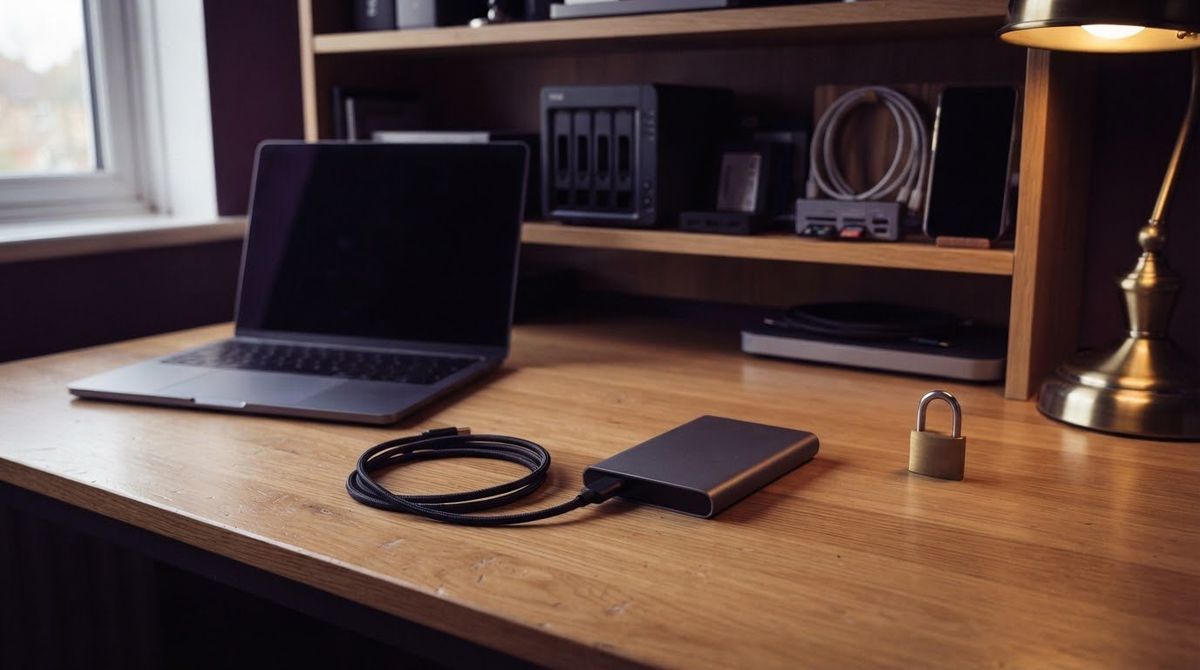
- Add a second external drive that you connect only to run a backup, then eject and store. See choosing an external drive.
- Turn on encryption for backups that leave the house. Apple says Time Machine can optionally encrypt backups, with a password required to restore.
- Keep a cloud or off-site copy with version history; confirm retention on the provider’s help page. See how cloud sync differs from backup.
Checked on 2026-11-14 against the Apple, Microsoft and CISA pages listed below. A NAS is useful, but it is not a standalone defence; see how a NAS fits in.
Test a restore
A backup you have never restored is a guess. Every few months, and after changing your setup:
- Connect the backup drive (or sign in to the cloud copy) on a computer you trust.
- Restore a handful of files, including a large one, to a different folder.
- Open them and confirm they are complete.
- Write the date down, then eject and store the drive.
Windows warns that restoring with File History replaces the current file and cannot be undone, so use the option that restores to another location. Back up first if you are restoring over anything you need.
If you think you are affected
This page is not incident response. Contact your IT provider or the support team of your device or security vendor, or a qualified professional, and follow their advice. In general terms, do not delete or reformat anything before advice, and do not plug your backup drive into a computer you suspect is affected. GigaGone offers no recovery or incident service.
FAQ
Can ransomware encrypt my backups?
It can if the backups are reachable. CISA states that many ransomware variants attempt to find and then delete or encrypt accessible backups, which can include connected drives and network locations. That is why guidance calls for at least one offline copy, kept disconnected until needed, in addition to your regular automatic backups.
What is an offline backup?
An offline backup is a copy that is not connected to your computer or network when nothing is being backed up, such as an external drive that you plug in only for the backup, then disconnect and store. CISA recommends maintaining offline, encrypted backups. Eject the drive before unplugging so the copy finishes cleanly.
Is cloud sync enough protection against ransomware?
Sync alone is not a backup, because a change on one device can be copied to the others. Some services keep earlier versions of files, which can help, but check what your service retains and for how long on its own help pages. A separate backup with version history and an offline copy is a safer combination.
What is an immutable backup?
It is a copy stored so that it cannot be changed or deleted for a set time. CISA notes some cloud vendors offer immutable storage, and advises delete protection or object lock on storage ransomware often targets. It also says to use immutable storage with caution, because it may not meet some compliance requirements.
How often should I test restoring a backup?
CISA recommends regularly testing the availability and integrity of backups. For a household, a reasonable habit is to restore a few files from each backup every few months, and after any change to your backup setup. Opening a file from the backup proves it can be read; a full restore proves the process.
What should I do first if I think I have ransomware?
Do not rely on this page for incident response. Contact your IT provider, your device or security vendor’s support, or a qualified professional promptly, and follow their instructions. Do not wipe devices or delete anything before getting advice, and do not connect your backup drive to an affected computer.
Sources
- CISA: #StopRansomware Guide
- NIST SP 1800-25: Data Integrity, Identifying and Protecting Assets Against Ransomware and Other Destructive Events
- Apple Support: Back up your Mac with Time Machine
- Microsoft Support: Backup and restore with File History
Related
Questions readers ask
Can ransomware encrypt my backups?
It can if the backups are reachable. CISA states that many ransomware variants attempt to find and then delete or encrypt accessible backups, which can include connected drives and network locations. That is why guidance calls for at least one offline copy, kept disconnected until needed, in addition to your regular automatic backups.
What is an offline backup?
An offline backup is a copy that is not connected to your computer or network when nothing is being backed up, such as an external drive that you plug in only for the backup, then disconnect and store. CISA recommends maintaining offline, encrypted backups. Eject the drive before unplugging so the copy finishes cleanly.
Is cloud sync enough protection against ransomware?
Sync alone is not a backup, because a change on one device can be copied to the others. Some services keep earlier versions of files, which can help, but check what your service retains and for how long on its own help pages. A separate backup with version history and an offline copy is a safer combination.
What is an immutable backup?
It is a copy stored so that it cannot be changed or deleted for a set time. CISA notes some cloud vendors offer immutable storage, and advises delete protection or object lock on storage ransomware often targets. It also says to use immutable storage with caution, because it may not meet some compliance requirements.
How often should I test restoring a backup?
CISA recommends regularly testing the availability and integrity of backups. For a household, a reasonable habit is to restore a few files from each backup every few months, and after any change to your backup setup. Opening a file from the backup proves it can be read; a full restore proves the process.
What should I do first if I think I have ransomware?
Do not rely on this page for incident response. Contact your IT provider, your device or security vendor's support, or a qualified professional promptly, and follow their instructions. Do not wipe devices or delete anything before getting advice, and do not connect your backup drive to an affected computer.
Further reading
- CISA: #StopRansomware Guide (cisa.gov)
- NIST SP 1800-25: Data Integrity, Identifying and Protecting Assets Against Ransomware and Other Destructive Events (csrc.nist.gov)
- Apple Support: Back up your Mac with Time Machine (support.apple.com)
- Microsoft Support: Backup and restore with File History (support.microsoft.com)
Worth reading next
- Data Loss and Recovery: Prevention, First Steps and When to Stop
Learn what to do first after accidental deletion or drive trouble, how to avoid overwriting lost files, and when to stop and call a data recovery pro.
- Account Recovery Setup: Do It Before You Lose Access
Set up Apple, Google and Microsoft account recovery now: recovery contacts, backup codes and recovery info, so a lost phone does not mean lost data.
- When to Stop and Call a Data Recovery Professional
Clicking, wet, dropped or vanished drives are signs to stop DIY and ask a professional. Here is what to do first and how to choose a service.
- Data Recovery Basics: What to Do (and Not Do) First
Lost files or a failing drive? The first steps that protect your data: stop using the drive, what not to try, safe checks, and when to call a professional.
- How to Encrypt Your Backups (and Not Lose the Key)
Encrypt iPhone, Mac and Windows backups the safe way: what each option does, why a lost password or key can mean lost data, and where to store keys.
- How to Recover Deleted Files Safely on Windows, Mac and Phones
Deleted something by mistake? Stop writing to the device first, then check the Recycle Bin, Trash, Recently Deleted or a backup, in that order.